
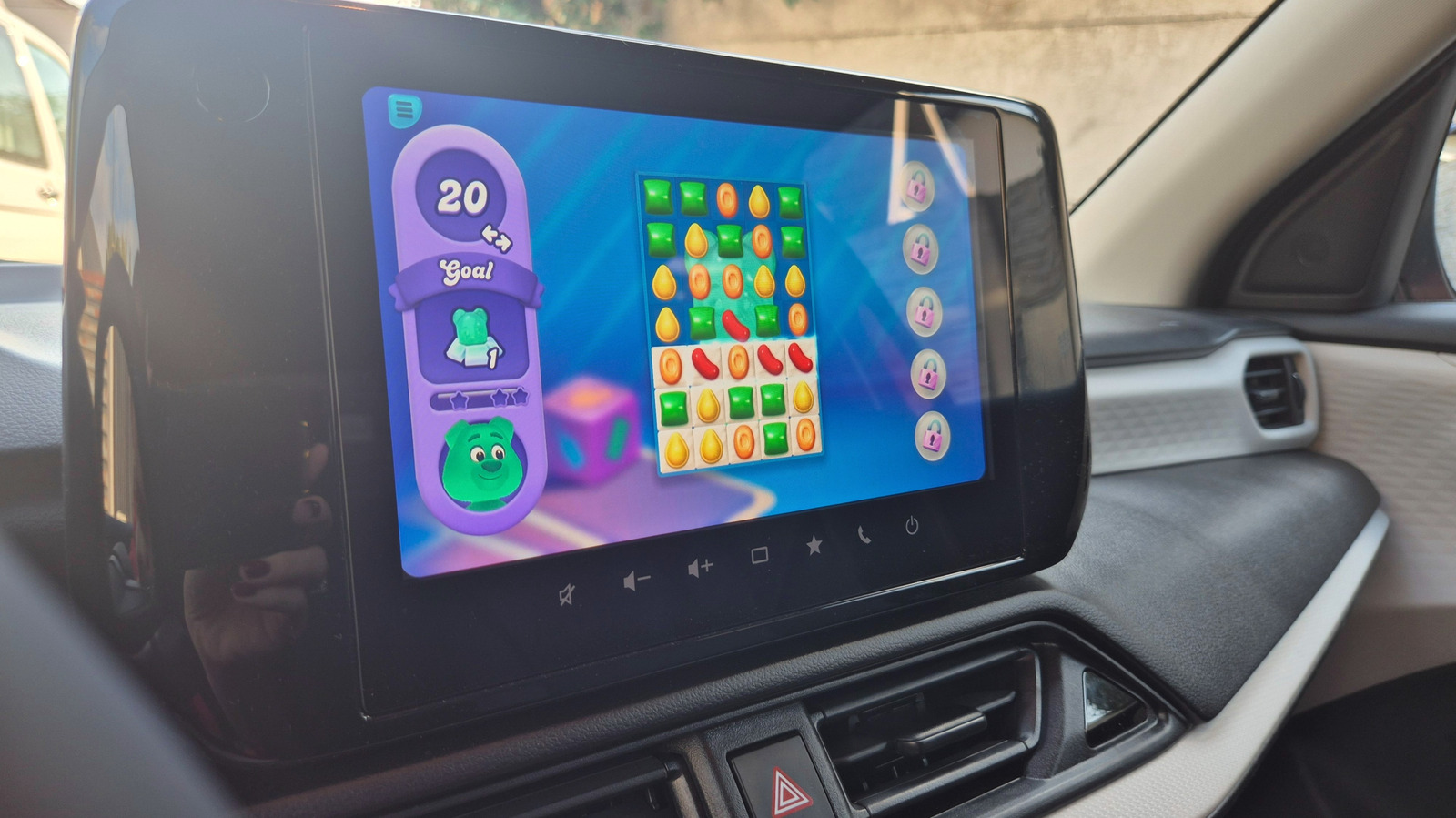
Getting a game onto your dashboard is pretty straightforward. First of all, install your favorite game from Google's collection of Android Auto-compatible game titles. You could also go to Google Play Store > Apps > Categories > Android Auto and rummage through the list. If you have everything you need installed, it's time to move to your car. Connect your phone to Android Auto, either by using a USB cable or wirelessly, depending on your car. The installed games should pop up on the screen. If they don't, you should go to Settings > Connected Devices > Android Auto > Customize launcher and ensure the games you want to play are included in the launcher. It's quite easy to find and hide apps on Android Auto.
Go ahead and launch the game whenever you're parked and have some fun. If none of the titles currently compatible with Android Auto are appealing, you could also go with what's already available in Android Auto, namely GameSnacks. Not that these are particularly fantastic, but they'll get you by when you're bored.
Angry Birds 2 is just as fun to play as it is on the phone, although the bigger screen is certainly a treat, while Candy Crush Soda Saga is quite entertaining and responsive. If you're a parent and want something for the kids, there's My Talking Tom Friends. BB Racing 2 felt impossible to play since it's a game where you need to use both hands to steer the car by touching the screen. A connected controller would solve the problem if this is a game you love.
The bottom line is that you'll now have a lot more ways to stay entertained while parked, and that's a lot better than twiddling your thumbs or scrolling social media. It's another feature that might improve your Android Auto experience.