
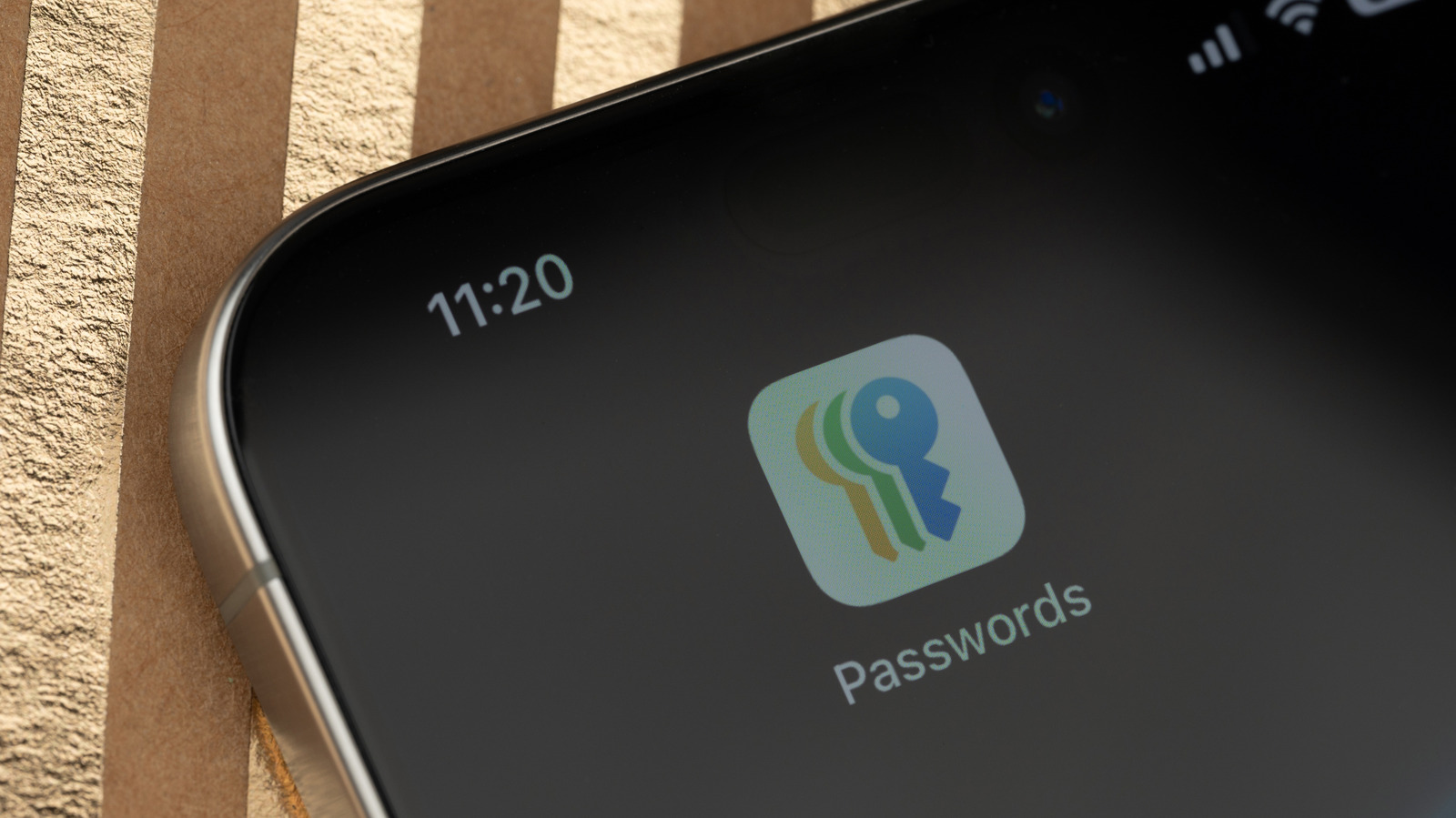
Apple introduced a new app for password management in iOS 18, eliminating the need to navigate through Settings to access security alerts. Open Passwords and authenticate with Face ID, Touch ID or your passcode, then follow these steps:
- Tap Security to view accounts that have flagged passwords. If you don't see the category, return to the app's main screen.
- Choose an impacted account and see if its password is marked as leaked, reused or weak.
- Tap Change Password to go to the service's website or app, where you can change the exposed credential to a unique one.
Keep in mind that simply changing the password stored in Apple's app (or any password manager) won't automatically change your account password. You need to update the password on the website first, then update the saved credentials to match. Most password managers should catch when you make this change and offer to update their stored information.
If you've reused a password on multiple accounts, change it everywhere, especially for email and banking accounts. Also consider passkeys, which can replace the traditional password on websites that support them, and enable two-factor authentication as another important layer of security.
In case you've been using Passwords for a while and have never seen these alerts, check if monitoring is turned on by going to Settings > Apps > Passwords > Detect Compromised Passwords. And if you receive a suspicious email, text or browser pop-up message that says your password has been leaked, ignore the links and look at the Passwords app. Hiding a security recommendation doesn't fix the password behind it, but falling for a fake security alert causes its own problems.